Setup guide
How to Set Up Claude Code on Your Computer
Install Claude Code, open it in your terminal, and let it set up the rest. No experience needed.
- Reading time
- 6 min read · about 10 minutes to follow
- Difficulty
- Beginner
- Last updated
- Updated
- Tools used
- Claude Code
- GitHub
- Docker
Claude Code is Claude working on your own computer: it writes code, runs it and fixes what breaks, while you tell it what you want in plain language. This guide gets it running. You type four short commands yourself, and Claude takes care of everything after that.
What you need
-
A Claude subscription
Any paid plan, such as Pro. It includes Claude Code, which builds the app, and Claude Design. The free plan does not include Claude Code.
Compare Claude plans -
A GitHub account
Your code is stored in a GitHub repository, so every change is saved and you can always go back.
Create a free GitHub account
And a Mac, a Windows PC or a Linux computer that you can install programs on.
Step 1: Open the terminal
The terminal is a window where you type instructions to your computer instead of clicking. You only need it to start Claude Code. After that, you talk to Claude in plain language.
- Mac: press Cmd and Space, type
Terminaland press Enter. - Windows: open the Start menu, type
PowerShelland press Enter. - Linux: open the Terminal app from your applications.
A window opens with a blinking cursor. That is where you type the commands in this guide.
Step 2: Install Claude Code
Copy the command for your computer, paste it into the terminal and press Enter. It downloads Claude Code and installs it.
curl -fsSL https://claude.ai/install.sh | bashirm https://claude.ai/install.ps1 | iexWhen it is done, close the terminal window and open a new one. If something goes wrong, the official installation guide has more detail for each system.
Claude Code also comes as a desktop app. We recommend the terminal version: it supports more plugins and options, including the ones our tutorials use.
Step 3: Start Claude Code
Claude Code works inside a folder: everything it makes for a project goes there. Make a folder for your first project, go into it, and start Claude:
Terminal
mkdir my-first-app
cd my-first-app
claude
Run the three lines one at a time. They work the same on Mac, Windows and Linux.
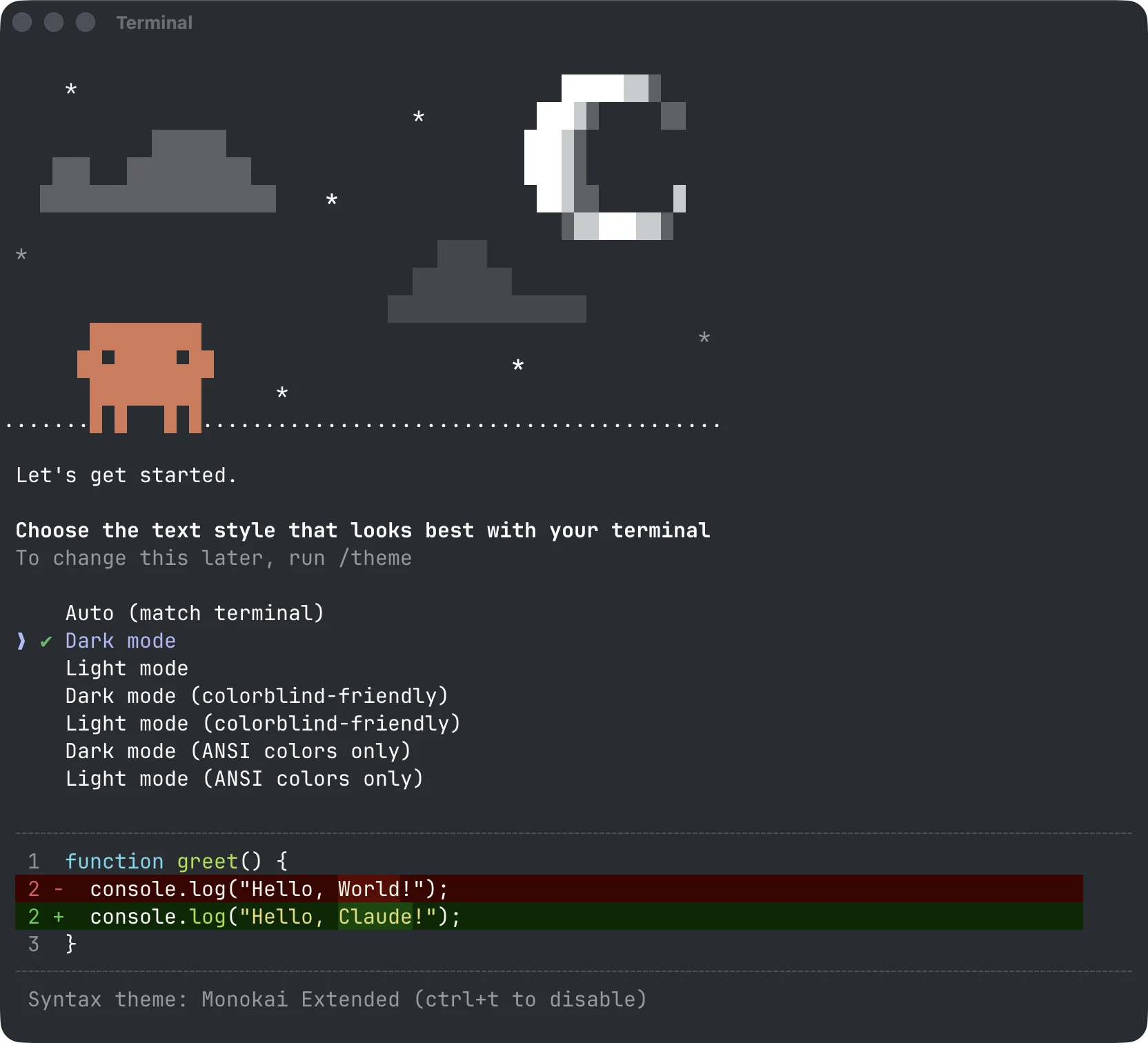
The first time, Claude Code asks a few setup questions, such as which colour theme you like. Then it opens your browser to log in: use the same account as your Claude subscription.
Step 4: Let Claude set up the rest
To build apps, Claude needs a few more tools: Git to save every version of your work, GitHub to store it online, and Docker to run your app and its database on your computer, the same way they will run online. You do not need to know how any of them work. Paste this into Claude Code:
Prompt
Set up your computer
This is the first time you talk to Claude in plain language. It works out what your computer already has.
What you should see: Claude checks what is installed and installs the rest, asking for your password or a click where needed. You log in to GitHub in your browser. At the end Claude confirms that Git, GitHub and Docker all work.
Docker Desktop has to be running whenever you work on an app on your own computer. If Claude ever says it cannot reach Docker, open Docker Desktop and try again.
Step 5: Find your way around
You talk to Claude Code like you would to a colleague. Before it changes a file or runs a command, it asks for permission and explains what it is about to do. Answer yes, or say no and tell it what you want instead.
- Enter
- sends your message. For a new line inside a message, press Shift and Enter together.
- Esc
- stops Claude in the middle of something, so you can correct it.
- /
- at the start of a message opens Claude Code's own commands, such as /help.
- /exit
- closes Claude Code. Your folder and everything in it stay where they are.
To come back to a project later, open the terminal, go into its folder with cd my-first-app and
type claude.
What's next
You are ready to build. Start with something small, so you see the whole loop once: you ask, Claude builds, you try it.
Prompt
Your first app
A tiny app you can throw away afterwards. The point is to see Claude work from start to finish.
What you should see: Claude explains its plan, writes the app, starts it, and gives you an address such as http://localhost:3000 to open in your browser.
Troubleshooting
“command not found: claude” after installing
Close the terminal window and open a new one, so it picks up the new program. If it still is not found, follow the installation guide linked in step 2 for your system.
Claude asks for my password
Installing programs needs your computer password, the one you use to log in. Type it in the terminal and press Enter. You will not see the characters while you type: that is normal.
Is it safe to let Claude run commands on my computer?
Claude asks before it runs anything, and tells you what the command does. Read the question, and say no if something does not make sense: you can always ask it to explain first. Working inside a folder for each project keeps its changes in one place.
Keep learning
Build the tools your business runs on.
AppHaven runs the apps you build with AI, with a managed database, private access and backups, in European datacenters.